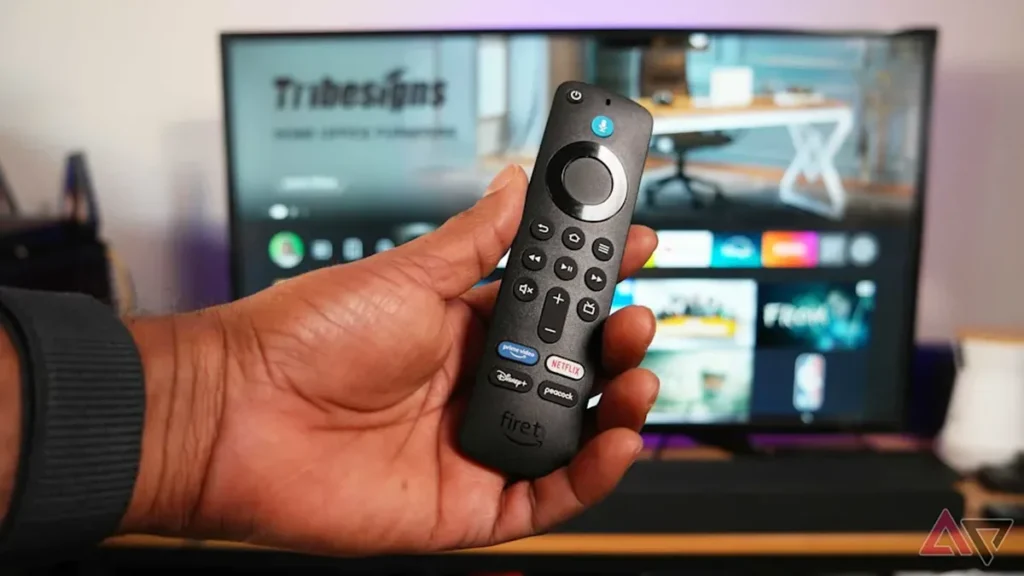
A customer wrote to us recently, frustrated: “Installed everything, and now just a black screen.” We get messages like that often, and there’s almost never a big problem behind them, just a small detail in the setup. Setting up IPTV on Firestick in 2026 takes a few minutes once you know two things: how installation really works since the store changes, and what to do when the stream acts up. Let’s look at both.
This guide is general and uses official app sources only. It walks you through the setup and through the errors that actually come up in practice.
The essentials
– Since 2026 the popular IPTV app is no longer in the Amazon store. You install it by “sideloading” through the Downloader app, from an official source.
– To log in you only need your access details (Xtream Codes or an M3U link) from the provider’s confirmation email.
– If something stutters, it’s usually not the app: in around 80% of our cases the cause is the home network or the device (IPTVBase, internal analysis 2026).
– For real 4K you need a 4K-capable stick and 25 to 50 Mbps. An Ethernet adapter beats Wi-Fi on stability.
What you need for the setup
Four things, no more. Before you start, check this list and the setup runs without snags.
- A Fire TV Stick: the standard model is fine for HD; for 4K you want a Fire TV Stick 4K or 4K Max.
- An IPTV app: a common player such as IPTV Smarters, IBO Player or a comparable client.
- Your access details: either an Xtream Codes login (username, password, server URL) or an M3U link, both sent by your provider by email.
- A stable connection: for HD 5 to 10 Mbps, for 4K closer to 25 to 50 Mbps.
That last item decides your day-to-day experience. The app is quick to set up; the connection carries the rest.
Set up IPTV on Firestick: step by step
Since 2026, Amazon removed many IPTV players from the store. That sounds like a hurdle but it’s routine: you install the app by sideloading. It’s allowed and done in five minutes. Go in order.
- Enable Developer Options. Open Settings > My Fire TV > About and click your device name seven times. Developer Options appear.
- Allow installs from unknown sources. Under Developer Options, turn on “Apps from Unknown Sources” for the Downloader app.
- Install Downloader. Get the free “Downloader” app from the Amazon Appstore.
- Load the IPTV app from an official source. In Downloader, enter the app’s official address or the link your provider gave you. Use official sources only, never dubious APK collections.
- Sign in. Open the app, choose “Login with Xtream Codes API” and enter the username, password and server URL from your confirmation email. Or paste your M3U link.
- Done. The channel list loads and you’re ready.
The whole setup usually takes only a few minutes. If a black screen remains at the end, it’s almost always one of the issues in the next section.
Troubleshooting: buffering, crashes, black screen
Now the part that really matters. When IPTV on the Fire TV Stick acts up, the app is rarely to blame. The cause is usually the home network or a device setting: in around 80% of our support cases the problem is there, not the stream (IPTVBase, internal support analysis 2026). The black screen is only the symptom; the real culprit sits elsewhere. The table below maps the most common cases to cause and fix.
| Symptom | Likely cause | Fix |
|---|---|---|
| Buffering and stutter at prime time | congested 2.4 GHz Wi-Fi | Switch to the 5 GHz band or use an Ethernet adapter; set DNS to 8.8.8.8 or 1.1.1.1 |
| Black screen on launch | app incompatible after a firmware update | Update or reinstall the app, then clear the cache |
| App crashes or freezes | full cache or low storage | Clear cache (Settings > Applications), restart the stick, delete unused apps |
| Buffering despite fast internet | slow DNS or an IPv6 conflict | Set DNS to 8.8.8.8 or 1.1.1.1; temporarily disable IPv6 |
| Login fails | wrong server URL, port, or http vs https | Copy details exactly from the email, check the port and protocol |
| Picture without sound or codec error | wrong decoder | Switch the decoder in the player (hardware/software) or use an external player |
A concrete case: the black screen from the customer above came from a firmware update that had broken the old app version. After a reinstall and clearing the cache, everything worked. No defect, just an incompatibility. Knowing the cause saves the frustration.
 Illustrative image
Tips for stable 4K playback
4K looks great but is demanding. For Ultra HD without stutter you need a 4K-capable stick and a stable line. Sport also often runs at 50 frames per second, which adds load. As a guide, 25 to 50 Mbps per stream (o2, 4K streaming bandwidth 2026, o2online.de).
Three levers make the difference: an Ethernet adapter for the Fire TV Stick instead of Wi-Fi, a fast DNS (8.8.8.8 or 1.1.1.1), and closing background apps that eat memory. If you’re unsure whether a provider delivers stable 4K, our guide on how to test IPTV shows how to check before you buy.
Frequently asked questions
Which IPTV app is best for the Fire TV Stick?
Common players are IPTV Smarters, IBO Player and comparable clients. More important than the brand is that the app runs stably, supports your format (Xtream Codes or M3U), and comes from an official source. If in doubt, try two apps; the interface often decides preference.
Why does IPTV stutter on the Fire TV Stick?
Usually it’s the network, not the app. Switch from 2.4 GHz to 5 GHz Wi-Fi or use an Ethernet adapter, and set DNS to 8.8.8.8 or 1.1.1.1. That fixes the stutter in around 80% of cases.
The app crashes after an update, what should I do?
First clear the cache under Settings > Applications. If that doesn’t help, reinstall the app, since after a firmware update the old version often no longer fits. Restarting the stick also frees up memory.
Do I need a 4K stick?
Only if you really want to watch in 4K and the content and connection support it. For HD and Full HD the standard model is fine. For stable 4K, a 4K-capable stick and 25 to 50 Mbps make sense, ideally over Ethernet.
My login doesn’t work, why?
Almost always a typo or the wrong port. Copy the username, password and server URL exactly from the confirmation email, watch http versus https, and check the port number. A single missing character blocks the login.
Is sideloading the app allowed?
Installing apps from official sources via sideloading is permitted. What matters is that you use licensed content through a reputable provider. For what applies to IPTV in Germany, see our overview of the legal situation for IPTV.
Bottom line: Setting up IPTV on Firestick in 2026 is straightforward once you install the app by sideloading from an official source and sign in with your access details. If it acts up afterward, the cause is almost always the home network: 5 GHz or Ethernet, a fast DNS, and a cleared cache solve most problems. For more guides see installation, and for the right plan our IPTV in Germany overview.
About the author
Heike Schmidt writes for IPTVBase about streaming, devices and the everyday living-room chaos around watching TV. She translates tech into daily life and, from more than 1,500 cases handled, knows the stumbling blocks that really show up when setting up on a Fire TV Stick and the like. More about the author on LinkedIn.