“After the last update the app is gone, and now just a black screen.” That message came from a Samsung owner, and it’s a real classic. Setting up IPTV on a Samsung Smart TV works without any extra device, straight through the Tizen operating system, in a few minutes. The hard part is rarely the install; it’s what comes after: updates, codecs and the home network. Let’s look at both, the setup first, then the errors we know from practice.
This guide is general and uses official app sources from the Samsung Smart Hub only.
The key points
– Samsung Smart TVs from 2016 (Tizen) support IPTV apps directly, no extra device needed.
– Common Smart Hub apps: IPTV Smarters (free), Smart IPTV (a one-time ~€5 after a trial) and SS IPTV (free with ads).
– Smart IPTV loads its channel list not on the TV but via the siptv.app website, using your TV’s MAC address.
– When something acts up, it’s usually the codec or the home network, not the service. In around 80% of our cases the cause is there (IPTVBase, internal analysis 2026).
Which IPTV app for Samsung (Tizen)?
Samsung runs its own operating system, Tizen, so not every app works as it would on Android. Three have proven themselves, and you’ll find them all in the Samsung Smart Hub. Which one fits depends on whether you prefer to start free or want a little more comfort.
| App | Cost | Sign-in | Notes |
|---|---|---|---|
| IPTV Smarters | free | Xtream Codes API or M3U on the TV | simplest setup, all on the TV |
| Smart IPTV (SIPTV) | one-time ~€5 after a 7-day trial | M3U upload via siptv.app using the TV’s MAC | widely used, good EPG and catch-up |
| SS IPTV | free (with ads) | M3U or portal | easy free entry |
For most people IPTV Smarters is the fastest route, because you do everything on the TV itself. Smart IPTV is popular for its good program guide but needs the small detour via the website.
Set up IPTV on Samsung Smart TV: step by step
 Illustrative image
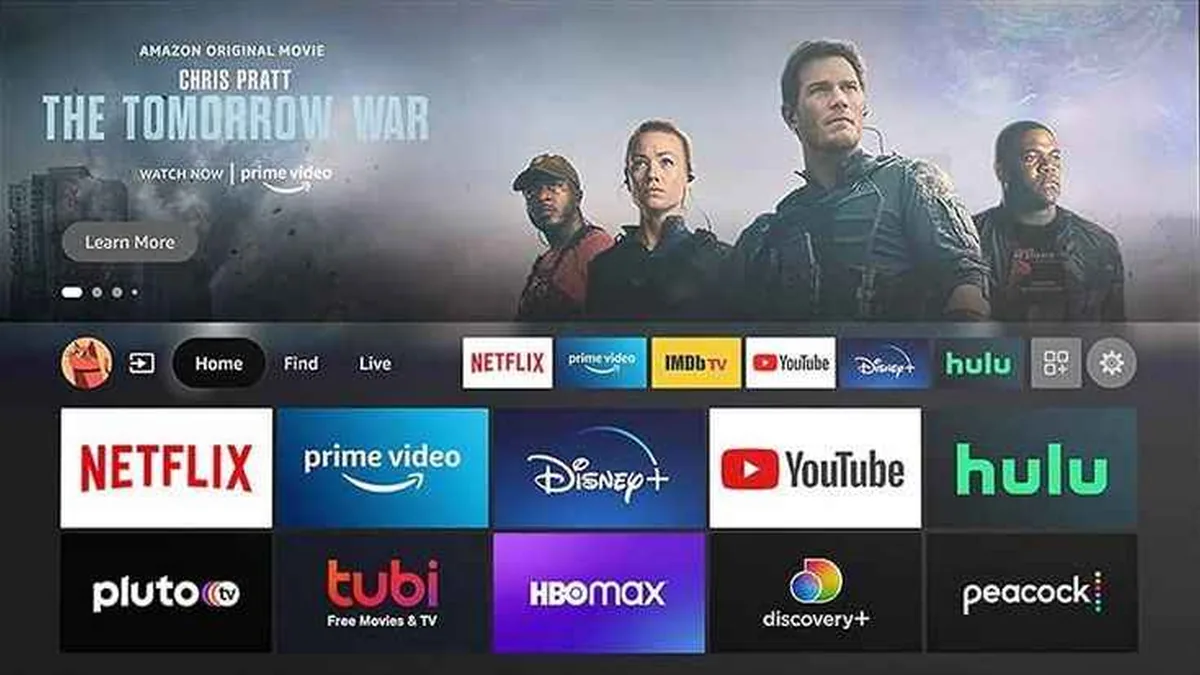
The install itself is quick. Have your access details ready (an Xtream Codes login or an M3U link from your provider’s email), then proceed like this.
- Install the app. Press the Home button, open Apps in the Smart Hub, search for “IPTV Smarters” or “Smart IPTV”, and install it.
- Sign in to IPTV Smarters. Open the app, choose “Login with Xtream Codes API” and enter the username, password and server URL. Or paste the M3U link.
- Upload the list for Smart IPTV. Note the MAC address the app shows. On a computer or phone, open siptv.app, enter the MAC, and upload your M3U playlist. Then reload on the TV.
- Check the channel list. The channels appear and you’re ready.
That’s all it takes to start. If the picture stays black or the sound is missing afterward, the next section helps.
Fixing common Samsung problems
Now the most important part. On Samsung devices the stumbling blocks are almost always the same, and most have nothing to do with the service. Usually a codec or the home network is behind it. The black screen is only the symptom; the real culprit sits elsewhere. The table below maps the most common cases.
| Symptom | Likely cause | Fix |
|---|---|---|
| App gone or crashing after a firmware update | app version no longer compatible | Update or reinstall the app in the Smart Hub, then restart the TV |
| Black screen when opening a channel | codec or player | Switch the decoder in the player (hardware/software) or use an external player |
| Picture plays but no sound | audio codec (e.g. AC3/EAC3) | Change the audio decoder or test a different player |
| Buffering and stutter, especially in the evening | congested 2.4 GHz Wi-Fi | Switch to 5 GHz or Ethernet; set DNS to 8.8.8.8 or 1.1.1.1 |
| Smart IPTV won’t load the channel list | wrong MAC or playlist URL on siptv.app | Check the MAC exactly and re-upload the playlist |
| IPTV Smarters login fails | wrong server URL, port, or http vs https | Copy details exactly from the email, check port and protocol |
A concrete case: for the Samsung owner from the intro, a firmware update had outpaced the app version. A reinstall from the Smart Hub and a restart were enough. No defect, just an incompatibility. Knowing the cause saves the frustration.
Tips for stable playback
 Illustrative image
For IPTV to run cleanly on Samsung long-term, it’s worth a look at the connection. For HD, roughly 5 to 10 Mbps; for 4K, 25 to 50 (o2, 4K streaming bandwidth 2026, o2online.de). A stable connection matters more than peak speed.
Three levers help most: an Ethernet connection instead of 2.4 GHz Wi-Fi, a fast DNS (8.8.8.8 or 1.1.1.1), and, for picture or sound issues, switching to an external player. To check whether a provider delivers reliably, vet it first, as described in our guide on how to test IPTV. For other devices see installation, including the Fire TV Stick.
Frequently asked questions
Which IPTV app is best for Samsung?
For most people IPTV Smarters is the easiest, since sign-in works right on the TV. Smart IPTV is popular for its program guide but needs the detour via siptv.app. SS IPTV is a free entry point with ads. What matters is that the app runs stably and supports your format.
Why does the IPTV app crash after an update?
Usually the old app version no longer fits after a firmware update. Update or reinstall the app in the Smart Hub and restart the TV. In most cases everything works again afterward.
Samsung shows a black screen with IPTV, what should I do?
That points to a codec or player issue. Switch the decoder in the player, from hardware to software or vice versa, or use an external player. Often the picture is back immediately.
No sound with IPTV on Samsung, why?
Almost always the audio codec, such as AC3 or EAC3. Change the audio output or decoder in the app, or test a different player. The picture stays; only the audio track is handled differently.
Does IPTV work on Samsung without an extra box?
Yes. Samsung Smart TVs from 2016 have Tizen and can install IPTV apps directly. A box only makes sense if your TV is older or doesn’t support a particular app.
What internet speed do I need?
For HD roughly 5 to 10 Mbps, for 4K 25 to 50. A stable connection matters more than peak speed, and Ethernet is more reliable than Wi-Fi, especially at prime time.
Bottom line: Setting up IPTV on a Samsung Smart TV works without an extra device, straight through Tizen: the right app from the Smart Hub, sign-in via Xtream Codes or M3U, and for Smart IPTV the detour via siptv.app. If it acts up afterward, it’s usually the codec or the home network: an external player, Ethernet over Wi-Fi, and a fast DNS solve most cases. For more guides see installation, and for the right plan our IPTV in Germany overview.
About the author
Heike Schmidt writes for IPTVBase about streaming, devices and the everyday living-room chaos around watching TV. She translates tech into daily life and, from more than 1,500 cases handled, knows the stumbling blocks that really show up when setting up on a smart TV. More about the author on LinkedIn.